Best IPTV Apps for Android and iOS
Choosing the wrong IPTV app kills your streaming experience before it even starts — wrong codec, broken EPG, no M3U support. This guide breaks down the top-rated IPTV players for Android and iOS, how they compare on real-world performance, and exactly how to set each one up with your subscription so you get live TV, VOD, and catch-up working from day one.
Start Your Free TrialBest IPTV Apps for Android and iOS: Foundations, Key Concepts, and Why Your App Choice Matters
What IPTV Apps Actually Do — and Why the Right One Changes Everything
An IPTV app is the software layer that sits between your subscription and your screen. It reads the channel playlist your provider delivers, connects to the stream in real time, decodes the video signal, and renders it — ideally without a single frame drop. Choosing the best IPTV app is not a cosmetic decision; it directly determines picture quality, loading speed, and how reliably you can watch 35,000+ live channels without interruption.
On Android and iOS, the app ecosystem is wide but uneven. Some players are built specifically for IPTV with deep feature sets — Electronic Program Guide (EPG) support, catch-up TV, multi-screen parental controls, and hardware-accelerated decoding. Others are generic video players bolted onto an M3U loader. Understanding that difference before you install anything will save you hours of troubleshooting.
The stakes are real: a weak app can make even a premium service feel broken. A strong app, paired with a quality provider, delivers a broadcast-television experience on any device — Firestick, Android TV box, iPhone, or iPad.
Related: explore our premium IPTV service
M3U Playlists: The Universal Language of IPTV
Almost every IPTV service — including premium providers in the US — delivers content through an M3U playlist file or a URL that points to one. M3U is a plain-text format that lists stream addresses, channel names, group tags, and logo URLs. When you paste your M3U URL into an IPTV app, the app fetches that list and builds your channel library automatically.
M3U support is therefore the single non-negotiable feature any IPTV app must have. Beyond basic compatibility, the best apps parse extended M3U attributes (the #EXTINF tags) to populate EPG data, sort channels into categories, and display channel artwork — all without any manual configuration on your part.
Some services additionally support Xtream Codes API login, which passes a username, password, and server URL instead of a raw M3U link. Many top-rated apps support both formats, giving you flexibility regardless of how your provider structures its access credentials.
EPG Explained: Why an Electronic Program Guide Is Non-Negotiable
EPG stands for Electronic Program Guide — the on-screen TV schedule that tells you what is airing now, what comes next, and what aired earlier. Without EPG integration, IPTV is essentially a list of unlabeled streams. With it, the interface feels like a proper cable or satellite TV experience, complete with program titles, descriptions, start times, and duration bars.
The best IPTV apps pull EPG data from an XMLTV source, either one baked into your provider's M3U playlist or a separate URL you supply. They then overlay that schedule onto your channel grid so you can browse programming the same way you would a traditional TV guide.
EPG accuracy matters especially for sports and live events, where knowing exactly when a match kicks off — and being able to set a reminder — is the difference between catching the opening whistle and missing the first half. When evaluating any IPTV app for Android or iOS, check that its EPG renderer updates in real time and handles multi-day schedules without crashing.
Related: our step-by-step installation guide
VOD and Catch-Up TV: More Than Just Live Channels
Live TV is the headline feature of any IPTV service, but video on demand (VOD) and catch-up TV are the capabilities that separate a good experience from a great one. VOD gives you access to a library of movies and TV shows available at any time — with a quality provider you can expect catalogs running to 145,000+ titles spanning every genre.
Catch-up TV is a closely related but distinct feature: it lets you watch content that already aired on a live channel, typically for a window of 7 to 30 days after the original broadcast. Think of it as a cloud DVR built directly into your channel lineup. If a game finished while you were at work, catch-up lets you watch it from the beginning that evening.
Not every IPTV app handles VOD and catch-up equally well. Some render VOD as a scrollable grid with search; others bury it behind menus. Catch-up requires the app to send a time-shifted stream request — a feature that needs explicit support in the player's architecture, not just in the provider's backend.
Buffering, Internet Speed, and What They Have to Do With Your App
Buffering is the universal frustration of IPTV, and it has two distinct causes that people frequently confuse. The first is a network issue: your internet connection is too slow, too congested, or too unstable to sustain the stream's bitrate. For HD streams, a stable 10–15 Mbps connection is generally sufficient; 4K streams typically require 25–50 Mbps with low jitter.
The second cause is the app itself. A poorly optimized player may use software decoding instead of hardware decoding, causing it to drop frames on cheaper Android devices. It may have an undersized buffer that cannot absorb brief network fluctuations. It may reconnect too slowly when a stream momentarily drops, turning a one-second hiccup into a 30-second freeze.
The best IPTV apps expose buffer size settings, let you switch between hardware and software decoders, and include automatic stream reconnection. These controls matter most on mid-range Android phones, older Firestick models, and any device where CPU headroom is limited. On iOS, hardware decoding is tightly controlled by Apple's APIs, so look for apps that are explicitly optimized for the iOS video pipeline.
Android vs. iOS: Platform Differences That Shape Your App Options
Android and iOS are fundamentally different platforms for IPTV, and the best app on one is not necessarily the best on the other. Android's open ecosystem means apps like IPTV Smarters Pro, TiviMate, and GSE Smart IPTV are available directly from the Play Store or as APK sideloads. Android TV and Fire OS extend the same ecosystem to your living room screen, making the same apps usable across phones, tablets, and Smart TV sticks.
iOS is more restrictive. Apple's App Store does not permit apps that explicitly market themselves for unauthorized streaming, which means some of the most popular Android IPTV players have no iOS counterpart. However, several strong players — including GSE Smart IPTV and IPTV Smarters — maintain App Store listings that focus on their legitimate M3U player functionality.
The practical implication: if you run a mixed-device household with both Android and Apple hardware, prioritize apps that have mature, well-maintained versions on both platforms. A consistent interface across devices reduces the learning curve and makes troubleshooting much simpler.
Related: start a free trial and test on your device
Key Terminology Cheat Sheet: Speak IPTV Fluently Before You Choose an App
Before diving into individual app comparisons, it helps to have a shared vocabulary. IPTV (Internet Protocol Television) delivers broadcast content over your broadband connection rather than via cable or satellite infrastructure. The stream is packetized, sent across the internet, and reassembled by your app — which is why network quality matters as much as the player software itself.
A few terms you will encounter constantly in app reviews and setup guides: HLS (HTTP Live Streaming) and RTMP are two common stream protocols; most apps support both. Multicast streams are shared across multiple viewers simultaneously; unicast streams are individual connections. Most residential IPTV services use unicast because home routers do not handle multicast well.
- M3U / M3U8 — playlist format that stores channel stream URLs
- Xtream Codes — login-based API alternative to raw M3U links
- EPG / XMLTV — schedule data format for on-screen program guides
- VOD — video on demand; movies and shows available anytime
- Catch-up TV — time-shifted playback of already-aired live content
- HLS — adaptive streaming protocol that adjusts quality to your connection
- Hardware decoding — offloading video decode to the device GPU for smoother playback
- Buffer — temporary storage that absorbs network fluctuations before they cause freezing
Why Provider Quality and App Quality Must Be Evaluated Together
A recurring mistake is blaming the app for problems that originate with the provider — or vice versa. If streams are pixelated regardless of which player you use, the issue is server-side encoding quality or CDN performance, not the app. If one specific app struggles while another plays the same stream cleanly, the bottleneck is the player's decoder or network handling.
The most reliable way to isolate variables is to use a provider with a proven track record — one rated 4.8/5 by 8,000+ subscribers, offering 35,000+ live channels with consistent uptime — and then test two or three apps against the same stream. Differences you observe then reflect genuine app-level variations in performance.
This guide exists to help you make that comparison systematically. The sections that follow cover specific app recommendations for Android and iOS, a side-by-side feature comparison, setup walkthroughs, and troubleshooting advice — everything you need to find the best IPTV app for your exact device and viewing habits.
Works on Every Device You Own
Whether you're streaming on Android, iOS, Smart TV, Firestick, or any other device, our IPTV service delivers 35,000+ live channels and 145,000+ movies & shows wherever you are.









Best IPTV Apps for Android and iOS: The Complete Deep Dive
How IPTV Apps Actually Work on Mobile and TV Devices
An IPTV app is essentially a media player with a built-in parser for M3U playlists, XMLTV-based EPG data, and streaming protocols like HLS, RTMP, and MPEG-TS. When you load a subscription into a compatible app, the software reads your M3U URL, pulls the channel list from the server, and streams each channel as a live transport stream directly to your screen. The quality of this process — how fast it buffers, how accurately it renders 4K HDR streams, how cleanly it handles EPG metadata — varies enormously between apps.
On Android, you have the widest selection of IPTV players because the platform allows sideloading APKs outside the Play Store. This matters because some of the most capable IPTV apps are not listed in official storefronts. On iOS, Apple's restrictions mean most reliable options come from the App Store directly, but that pool has expanded significantly over the last two years. Whether you're running an Android TV box, a Firestick, a Samsung Smart TV through a casting workaround, or a native iPhone app, your choice of player directly determines picture stability, EPG accuracy, and catch-up TV access.
Related: Installation Guide
IPTV Smarters Pro: Still the Most Versatile Android and iOS Player
IPTV Smarters Pro remains the most widely recommended app across both Android and iOS, and for good reason. It natively supports Xtream Codes API login alongside standard M3U URL imports, which means subscribers get access to VOD libraries, series, and live TV all within a single organized interface. The built-in EPG renders accurately when the provider supplies a proper XMLTV feed, and the multi-screen layout makes navigating 35,000+ live channels far less overwhelming than a flat list.
On Android, the APK version allows slightly more configuration than the Play Store build — you can adjust buffer size, choose between software and hardware decoding, and set a custom user agent string. On iOS, the App Store version is nearly feature-equivalent, though hardware decoder switching is handled automatically rather than manually. For users on a premium IPTV subscription with a large channel count, the category sidebar and search function in Smarters Pro are genuinely time-saving rather than cosmetic features.
One practical limitation: IPTV Smarters Pro can occasionally struggle with very high-bitrate 4K streams on older hardware. If you're running it on an entry-level Android device with 2GB of RAM, enabling hardware acceleration and reducing the player buffer to 3,000ms rather than the default 5,000ms tends to stabilize playback noticeably.
TiviMate: The Premium Choice for Android TV and Firestick
TiviMate has earned a reputation as the cleanest, most polished IPTV player for Android TV-based devices — including Firestick, NVIDIA Shield, and Android TV boxes. The interface is built specifically for 10-foot viewing, meaning it works well with a remote rather than a touchscreen. The free version supports one playlist and basic EPG; TiviMate Premium (a one-time purchase or annual subscription) unlocks multiple playlists, recording to external storage, parental controls, and a fully customizable layout.
The EPG integration in TiviMate is among the best of any IPTV app. It pulls XMLTV data efficiently, caches it locally, and displays a proper 7-day guide grid that feels closer to a cable TV interface than most competitors. For subscribers using a service with 145,000+ movies and shows alongside live channels, TiviMate's VOD section is functional but not its strongest feature — it's genuinely optimized for live TV and catch-up TV, not on-demand browsing.
TiviMate is not available on iOS at all. If you're splitting usage between an Android TV box and an iPhone, you'll need a separate app for mobile. That said, for dedicated living room setups on Firestick or Shield, TiviMate Premium is difficult to beat on raw performance and interface quality.
Related: Free Trial
GSE Smart IPTV: Cross-Platform M3U Support Done Right
GSE Smart IPTV is one of the few players available on both Android and iOS with genuine feature parity between versions. It supports M3U local file imports, M3U remote URL loading, and Xtream Codes connections — covering every standard method a modern IPTV provider might use. The app also supports external player handoff, so if you prefer VLC or MX Player for actual decoding, you can route streams through those engines from GSE's interface.
The EPG setup in GSE is more manual than in TiviMate or Smarters. You add XMLTV sources separately, map them to channels yourself if auto-matching fails, and refresh on a schedule you configure. It's a one-time setup cost that pays off in reliability — channels that auto-mapping tools misidentify stay correctly labeled once you fix them manually.
For iOS users specifically, GSE Smart IPTV is one of the strongest M3U-based options on the App Store. It handles high-channel-count playlists without the app freezing on load, which is a real issue with some lighter iOS IPTV players that weren't built to handle playlists with thousands of entries. If your subscription includes 35,000+ channels in a single M3U, GSE handles the parse and render more gracefully than most alternatives on iPhone.
Comparing Buffer Settings, Decoding Modes, and Stream Protocols
Buffer size is one of the most misunderstood settings in any IPTV app. A larger buffer (5,000–8,000ms) smooths over minor network hiccups but adds latency before a live stream begins playing and increases the delay when skipping between channels. A smaller buffer (1,500–3,000ms) means faster channel changes and near-real-time live TV, but any packet loss or brief drop in your internet speed will surface as a freeze or rebuffer event. For stable home broadband above 25 Mbps, a 3,000ms buffer is usually the sweet spot.
Hardware decoding uses your device's dedicated video chip to decode H.264 and H.265 streams, reducing CPU load and enabling smooth 4K playback on capable hardware. Software decoding does the work in the app itself, which is slower but more compatible with unusual stream formats or non-standard bitrates. Most IPTV apps default to auto-select, which works well on modern devices. If you're seeing green artifacts, audio sync issues, or crashes on specific channels, manually switching between hardware and software decoding resolves the problem in the majority of cases.
HLS (HTTP Live Streaming) is the dominant protocol for IPTV delivery today and the one most apps handle most reliably. MPEG-TS over UDP is faster and lower latency but requires a more stable network. If your provider supports both and you're on Wi-Fi rather than a wired connection, HLS will buffer more gracefully during brief signal dips. Check your app's stream URL prefix — HLS streams start with http:// or https://, while UDP streams start with udp://.
Related: FAQ
Setting Up an M3U Playlist: Step-by-Step for Android and iOS
Setting up an M3U playlist in any IPTV app follows the same core steps regardless of platform. First, obtain your M3U URL or Xtream Codes credentials (host, username, password) from your IPTV provider. Second, open your chosen app and navigate to the 'Add Playlist' or 'Add Provider' section. Third, paste your M3U URL or enter your Xtream Codes details. Fourth, allow the app to load and parse your channel list — this can take 30 seconds to several minutes depending on playlist size and your internet speed.
On Android, if you're loading a very large playlist for the first time, keep the screen active and the app in the foreground. Background process restrictions on Android 10 and above can interrupt the initial parse. Once loaded and cached, subsequent refreshes are much faster. On iOS, the same applies — Safari and background app refresh limits mean you should complete the initial setup with the app foregrounded and screen timeout disabled.
After loading, configure your EPG source. Most premium providers supply an XMLTV URL alongside the M3U — add this in the EPG settings section of your app. Set the refresh interval to every 12–24 hours rather than on every app launch. This reduces load on the provider's EPG server and speeds up your app's startup time considerably. Once EPG data is cached, your program guide will populate for all channels that have matching IDs in the XMLTV feed.
iOS-Specific Considerations: App Store Limitations and Workarounds
Apple's App Store review process means IPTV apps on iOS tend to be more conservative in their feature sets than Android counterparts. Apps can't sideload, can't record to arbitrary storage locations, and must comply with Apple's media playback guidelines. Despite this, several capable players exist: GSE Smart IPTV, IPTV Smarters Pro, and Flex IPTV all offer solid M3U and Xtream Codes support within these constraints.
Flex IPTV is worth mentioning specifically for iOS users who want a clean, modern interface. It supports M3U playlists, XMLTV EPG, and has a picture-in-picture mode that works well for monitoring live sports while using other apps. The free version limits you to one playlist; the paid version removes that restriction and adds EPG grid view. For iPhone users who want something lighter than Smarters Pro, Flex IPTV is a strong alternative.
One iOS workaround that's genuinely useful: if an app you want isn't on the US App Store, switching your Apple ID region to the UK or Australia temporarily allows you to download apps available in those storefronts. This applies to certain IPTV players that are published regionally. Just remember to switch your region back afterward to avoid issues with existing App Store subscriptions and purchases.
Performance Benchmarks: What to Expect on Different Devices
On a mid-range Android phone (Snapdragon 700-series, 6GB RAM) running TiviMate or Smarters Pro, channel switching on a well-provisioned IPTV service should take under 2 seconds for standard HD streams and 3–4 seconds for 4K streams. If you're consistently seeing 6+ second channel change times, the bottleneck is almost always your network latency or DNS resolution speed, not the app itself. Switching to a faster DNS resolver (1.1.1.1 or 8.8.8.8) in your router settings often cuts this time noticeably.
On Firestick 4K Max with TiviMate, 4K HDR streams at 25+ Mbps play back smoothly with hardware decoding enabled. The Firestick's limited RAM (3GB) means keeping unnecessary apps running in the background will degrade IPTV performance. Use a lightweight launcher or close background apps before starting a long viewing session. On older Firestick models (Fire TV Stick 3rd Gen), stick to 1080p streams — 4K playback is technically supported but causes frequent buffering on streams above 15 Mbps.
For Apple TV users who want iOS-like app access on the big screen, GSE Smart IPTV and IPTV Smarters Pro both have tvOS versions. The Apple TV 4K handles 4K HDR IPTV streams without hardware strain, and the remote experience is better than most Android TV remotes for navigating large channel lists. Rated 4.8/5 by over 8,000 subscribers, a quality IPTV service paired with Apple TV 4K and a solid player represents one of the best home streaming setups available today.
Related: Pricing Plans
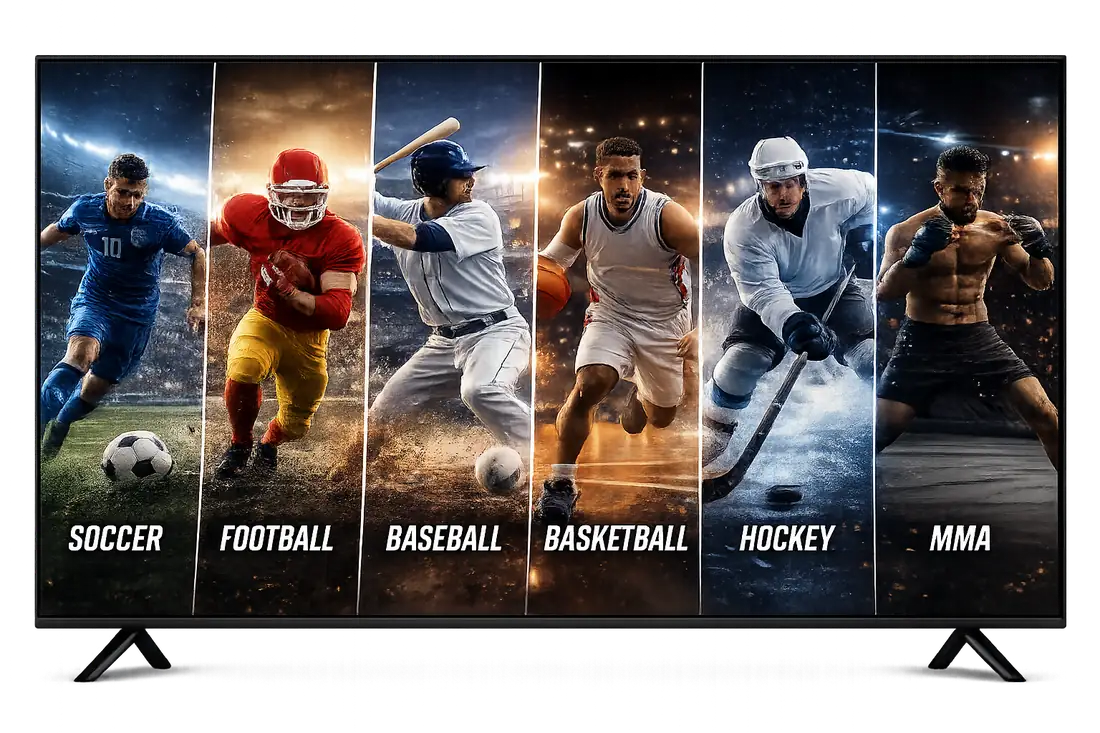
Never Miss a Game — Live Sports on Every Device
Stream every major league, tournament, and championship live on Android or iOS with full EPG support and zero blackouts.
Whether you're watching on an Android phone, iPhone, Smart TV, or Firestick, our IPTV service delivers live sports in crystal-clear quality — including 4K streams where available. With 35,000+ live channels and dedicated sports packages, every kickoff, tip-off, and race start is covered. Low-latency streams mean you're not reading the final score on Twitter before your stream catches up. Set up takes minutes, and our EPG keeps your schedule organized so you never scroll blindly looking for the next match.
How to Choose, Set Up, and Get the Most Out of the Best IPTV Apps on Android and iOS
Step 1 — Match the App to Your Device Before You Download Anything
The single most common mistake new IPTV users make is downloading whichever app ranks first in a Google search without checking whether it actually works well on their specific device. An app that performs flawlessly on a Samsung Galaxy running Android 13 may stutter or crash on an older Fire TV Stick running Fire OS 6. Start by identifying your device's OS version and available RAM before you commit to any player.
On Android, IPTV Smarters Pro and TiviMate are the two players worth serious consideration for most users. Smarters works across Android phones, Android TV boxes, and Firestick with minimal configuration, while TiviMate offers a more polished EPG interface that feels purpose-built for television screens. On iOS, GSE Smart IPTV and IPTV Smarters Pro (available on the App Store) both support M3U playlist imports and multi-screen layouts that hold up well on iPhone and iPad alike.
If you own multiple device types — say, an Android phone and an Apple TV — prioritize a player available on both ecosystems so your playlist and settings sync without manual re-entry. Smarters Pro is currently the safest cross-platform bet for exactly that reason.
- Check your Android version (go to Settings → About Phone) before installing
- On Firestick, enable 'Apps from Unknown Sources' before sideloading any APK
- On iOS 17+, verify App Store availability before purchasing a premium player license
- For Android TV boxes, choose a player with a D-pad-friendly remote UI — TiviMate excels here
Related: Installation Guide
Step 2 — Understanding M3U Support and Why It Matters for Setup
M3U is the universal playlist format that connects your IPTV service to whatever app you're using. When a provider gives you an M3U URL, that single link contains pointers to every live channel, VOD title, and catch-up stream in your subscription. Every serious IPTV app on Android and iOS supports M3U imports, but the quality of how each app parses, caches, and refreshes those playlists varies considerably.
Poor M3U handling shows up as slow channel-load times, EPG data that's hours behind schedule, or VOD libraries that display thumbnails but refuse to play. TiviMate handles large M3U playlists — the kind that include 35,000+ live channels — more efficiently than most competitors because it caches playlist data locally and only re-fetches changes on refresh. GSE Smart IPTV on iOS takes a similar approach and is one of the few iOS players that correctly renders multi-language EPG metadata.
When you set up your M3U URL inside any player, always opt for the HTTPS version of the link rather than HTTP. Encrypted connections reduce the chance of ISP-level throttling interfering with your stream, which is especially relevant in the US where some carriers still deprioritize unrecognized streaming traffic during peak hours.
- Paste the M3U URL — never download and re-upload the file, as it won't auto-update
- Set EPG (XMLTV) refresh to every 24 hours to keep the guide accurate
- In TiviMate, enable 'Load EPG after startup' to reduce initial channel-load delay
- In GSE Smart IPTV, use the Remote Playlist option for automatic playlist sync
Step 3 — Configuring Playback for Buffer-Free 4K and HD Streams
Even with the best IPTV app installed, poor playback settings can turn a 4K stream into a slideshow. The first variable to control is the decoder. Most Android IPTV apps let you choose between a software decoder (the app handles all processing) and a hardware decoder (your device's GPU handles it). For 4K content, always select hardware decoding — software decoding on anything short of a flagship phone will result in dropped frames and audio sync issues.
Buffer size is the second setting worth adjusting. The default buffer in most players sits around 1,000–2,000 milliseconds, which is adequate for stable broadband but insufficient if your home Wi-Fi fluctuates. Bump the buffer to 5,000 ms for live sports where a few seconds of delay is acceptable, and drop it back to 1,500 ms for live news where latency matters. TiviMate exposes this setting directly in its player options; Smarters buries it under Advanced Settings.
Your internet connection itself is the ceiling everything else runs beneath. For HD streams, a sustained 10 Mbps per stream is the practical minimum. For 4K HDR content, plan on 25–40 Mbps per stream with a low-jitter connection. If you're seeing consistent buffering despite fast speeds, the culprit is almost always Wi-Fi congestion — switch to a 5 GHz band or use an Ethernet adapter on your streaming device.
- Use hardware (HW) decoder for 4K; use software (SW) decoder only as a fallback for problematic channels
- Set video aspect ratio to 'Auto' to avoid letterboxing on widescreen content
- Disable background app refresh on iOS while streaming to free up bandwidth
- On Android TV, clear the player's cache weekly if you stream more than 4 hours daily
Critical Mistakes to Avoid When Using IPTV Apps
Using an outdated version of your IPTV app is one of the most overlooked sources of buffering, EPG failures, and random crashes. Developers push updates to address server-side changes, codec compatibility issues, and security patches. TiviMate in particular releases updates that specifically improve M3U parser performance — skipping those updates means slower channel loads for no good reason. Enable auto-updates on Android; on iOS, auto-updates are on by default but worth confirming in your App Store settings.
Another frequent error is subscribing to an IPTV provider without testing compatibility first. A 4.8/5-rated service with 8,000+ verified subscribers and a catalog of 35,000+ live channels and 145,000+ movies and shows can still be set up incorrectly if you're using the wrong player or wrong stream format. Always request or use a free trial period specifically to test stream stability in your app of choice before paying for a full subscription.
Don't skip a VPN evaluation — but also don't assume a VPN automatically improves your experience. A VPN with a nearby server can reduce ISP throttling on IPTV traffic, but a slow VPN server will add latency that causes more buffering than it prevents. If you use a VPN, test your stream speeds with it on versus off before leaving it running permanently.
Related: Free Trial
Player Comparison at a Glance — Which App Wins for Your Use Case
TiviMate is the top recommendation for dedicated Android TV and Firestick setups where the television is the primary viewing screen. Its EPG layout, multi-panel design, and catch-up TV integration are better than anything else currently available on Android for the living room experience. The free tier is functional; the premium subscription at around $4.99/year unlocks multiple playlist support and advanced recording features.
IPTV Smarters Pro is the better pick for users who move between devices — phone, tablet, and Smart TV — and need one app that works acceptably everywhere without extensive per-device configuration. Its interface is less refined than TiviMate but its cross-device portability and iOS availability make it the most versatile option in the market right now.
GSE Smart IPTV is the iOS specialist. If your primary device is an iPhone or iPad, GSE handles M3U parsing, multi-stream VOD browsing, and EPG data more reliably than any other iOS IPTV app. It supports Chromecast output, which extends its usefulness to Smart TVs without requiring a separate streaming stick.
Perfect Player remains a lightweight alternative for Android users on older or low-RAM devices. It loads playlists faster than Smarters on 2GB RAM devices and its simple grid EPG is easier to navigate on smaller phone screens.
- TiviMate — Best for: Android TV, Firestick, living room setups
- IPTV Smarters Pro — Best for: Multi-device, Android + iOS households
- GSE Smart IPTV — Best for: iPhone and iPad primary users
- Perfect Player — Best for: Older Android devices with limited RAM
Setting Up Your IPTV App with a Premium Provider — The Right Order of Operations
Start your setup before you install the app by gathering three pieces of information from your provider: your M3U URL, your XMLTV EPG URL, and your portal URL if the service supports Xtream Codes API login. Having all three ready means you won't be interrupting setup to search emails mid-process, which often leads to entry errors and wasted troubleshooting time.
Install the app, then immediately run it once without entering any credentials to let it initialize its local database and check for updates. After that first run, navigate directly to the playlist or provider settings and enter your M3U URL. Allow the full channel list to load — for a service with 35,000+ channels, this initial parse can take 60–90 seconds on an average Android device. Don't interrupt it.
Once channels load, immediately verify EPG is populating by checking a major live sports or news channel. If the EPG shows 'No Information,' your XMLTV URL either wasn't entered or hasn't synced yet — trigger a manual refresh before assuming there's a problem. After EPG confirms working, organize your favorites list with the 20–30 channels you watch most often. This step saves more daily friction than any other configuration tweak.
Related: Pricing Plans
How to Evaluate Stream Quality Before Committing to Any IPTV Service
During any trial period, test streams across at least five distinct categories: live sports during an active game, a 24-hour news channel, a recently released movie in 4K, a catch-up TV episode from the past 48 hours, and a foreign-language channel if your household uses one. This five-category test exposes most infrastructure weaknesses that a vendor's marketing will never mention.
Pay specific attention to sports streams during high-traffic windows — weekend evenings and major game times are when underpowered IPTV servers struggle most. A provider confident in their infrastructure will offer a trial that includes at least one weekend. If a service only offers weekday trials, treat that as a yellow flag worth noting.
Check the EPG accuracy on at least three channels: confirm that what's showing on screen matches what the guide says is scheduled. A guide that's off by 30 minutes or more suggests the provider isn't refreshing their EPG data frequently enough, which will frustrate daily use when you're trying to set reminders or browse upcoming programming.
Closing Verdict — The Setup That Works for Most US Households
For the majority of US subscribers streaming on a combination of Android devices and iPhones, the practical answer is straightforward: use IPTV Smarters Pro as your cross-device player, pair it with a provider that delivers a genuine 35,000+ channel lineup with robust VOD depth, and run your streams over a 5 GHz Wi-Fi connection with hardware decoding enabled. That combination handles 95% of everyday streaming without requiring any advanced configuration.
If your household is television-first and you're running a Firestick or Android TV box as your main screen, upgrade to TiviMate Premium for the superior EPG and multi-playlist management. The $4.99/year cost is negligible compared to the daily experience improvement it delivers for living room viewers who browse the guide the way traditional TV watchers always have.
The most important variable in the entire setup is the quality of the IPTV service itself. An excellent app connected to an unreliable provider will always underperform, while a solid provider accessed through even a mid-tier app will deliver a good experience. Prioritize provider quality — uptime, channel count, server redundancy, and customer support response time — above app selection. Start with a free trial, test across device types, and only commit to a paid plan once you've confirmed the streams hold up under your specific home network conditions.
- Use hardware decoding for all HD and 4K content
- Set your M3U URL to HTTPS and enable 24-hour EPG refresh
- Test streams during a live sports event before purchasing a full subscription
- Organize a favorites list of your top 20–30 channels immediately after setup
- Contact your provider's support team during trial if any category of stream underperforms — good providers respond within hours
Frequently Asked Questions About the Best IPTV Apps for Android and iOS
Which IPTV app works best for loading M3U playlists on Android?
IPTV Smarters Pro and TiviMate are the top choices for M3U playlist support on Android. TiviMate offers the cleanest EPG integration and buffer controls, making it ideal for power users. IPTV Smarters Pro is easier for beginners. Both apps let you paste your M3U URL directly or upload a file, and they support multiple playlists simultaneously.
Can I use an IPTV app on my iPhone or iPad?
Yes. GSE Smart IPTV and Flex IPTV are the most capable M3U-compatible players available on the iOS App Store. GSE Smart IPTV supports external players like VLC and handles large channel lists well. Flex IPTV has a more polished interface with built-in EPG support. Both work on iPhone and iPad running iOS 13 or later.
Do I need a fast internet connection to run an IPTV app without buffering?
For standard definition streams, 10 Mbps is sufficient. HD streams (1080p) require at least 25 Mbps, and 4K content needs a stable 50 Mbps or more. Wired Ethernet connections outperform Wi-Fi for IPTV stability. If you're on Wi-Fi, position your router close to your streaming device and avoid peak congestion hours to reduce buffering.
What is the difference between an IPTV app and an IPTV service?
An IPTV app is the media player software — it reads your M3U playlist and displays channels, VOD, and the EPG on screen. An IPTV service is the subscription that provides the actual content: live channels, movies, and TV shows hosted on servers. You need both. The app is free; the service requires a subscription like the one offered here with 35,000+ live channels.
How do I set up an IPTV app on a Firestick or Android TV box?
On a Firestick, enable 'Apps from Unknown Sources' in Developer Options, then sideload IPTV Smarters Pro or TiviMate via the Downloader app. On Android TV boxes, most apps are available directly from the Google Play Store. Once installed, open the app, choose 'Add Playlist via URL,' paste your M3U link from your provider, and your channel list will populate automatically within seconds.
Is TiviMate better than IPTV Smarters Pro for watching live sports?
TiviMate has the edge for live sports thanks to its smooth channel-switching speed, picture-in-picture mode, and customizable buffer size settings that reduce mid-match freezing. Its EPG layout also makes it easy to find sports schedules at a glance. IPTV Smarters Pro is a solid free alternative, but TiviMate's paid premium tier delivers noticeably better performance for high-action live TV content.
Ready to Put the Best IPTV App to Work?
You've picked your app — now you need a service that matches it. Get instant access to 35,000+ live channels, 145,000+ movies and shows, full EPG, and 4K streams, all compatible with every Android and iOS player covered in this guide. Rated 4.8/5 by over 8,000 subscribers. Start your free trial today and stream within minutes.